|
RadiantQ jQuery Gantt Package
Enable Row Drag and Drop
|   |
|
RadiantQ jQuery Gantt Package
Enable Row Drag and Drop
| |
Enabling Row Drag And Drop
You can turn on drag and drop of rows in the FlexyGantt's grid as follows with the CanUserReorderRows, EnableDropAsChild settings:
|
var $gantt_container = $('#gantt_container'); $gantt_container.FlexyGantt({ CanUserReorderRows: true, EnableDropAsChild: true, ............ ............. GanttChartTemplateApplied: function (sender , args) { ............... } }); |
This will allow you to start dragging rows:
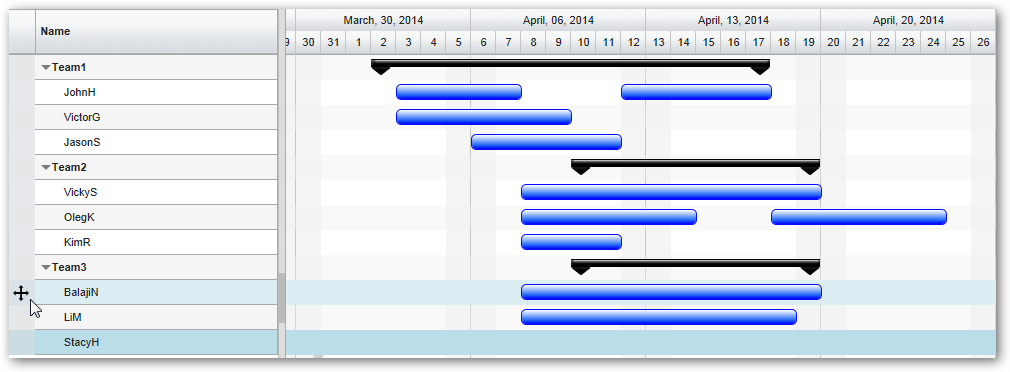
Dragging a FlexyGantt row
Next, listen to drag & drop events as follows:
|
var fxgantt = $gantt_container.data('FlexyGantt'); fxgantt.BeforeRowsDragStart.subscribe(function (args) { // Here the args will give you the top selected row index. You can optionally, prevent the dragging here. var selectedItems = fxgantt.SelectedItems; for (var i = 0; i < selectedItems.length; i++) { if (selectedItems[i].Data().TName == "Team2") { args.Cancel = true; return; } } }); fxgantt.SelectedRowsDrop.subscribe(function (args) { // Here the args will give you the rows that are being dragged and the destination row, including whether the user wanted the rows to be dropped as sibling or children. // This will be the case when Teams are dragged. var selectedItem = fxgantt.SelectedItem; if (selectedItem.IsParentType() == false) { alert("Only Employees can be dragged"); args.Cancel = true; return; } // This will be the case when the user chooses to drop next to a node rather than within a node. else if (args.DropAsChildren == false) { args.Cancel = true; alert("Can only be dropped as children."); } // User choose to drop within a node else { var dropRowData = fxgantt.FlatHierarchicalItemsList[args.DestinationIndex]; // Do this only when the destination is a Team if (dropRowData.data.TName == "Team1") { args.Cancel = true return; } if (dropRowData._parentItem == null || dropRowData._parentItem == undefined) { // Save the selected rows, before deleting them from the UI: var selectedRows = fxgantt.SelectedItems.slice(0); var index = GetRowIndex(dropRowData.corrFlexyNodeData); var dropTeam = GetTeam(index); // Move all the selected employees into the destination team. for (var i = 0; i < selectedRows.length; i++) { var empIndex = GetRowIndex(selectedRows[i]); var employee = selectedRows[i].Data(); var currentTeam = GetTeam(empIndex); if (currentTeam != dropTeam) { // Delete from old Team $.observable(currentTeam.Resources).remove(employee); // Add to new Team $.observable(dropTeam.Resources).insert(employee); } } } else { alert("Can only be dropped on Teams"); args.Cancel = true; } } }); GetRowIndex = function (rowData) { if (fxgantt.options.UseVirtualization) return rowData.TableRow()[0]._displayIndex; else return rowData.TableRow()[0].rowIndex; } |
A sample that illustrates this feature can be located here in the install:
In HTML : ..\Samples\MovingResourceRows.htm.
In ASP.NET MVC : ..\Views\Home\FlexyGantt\MovingResourceRows.cshtml.
In ASP.NET : ..\Samples\FlexyGantt\MovingResourceRows.aspx.