|
RadiantQ jQuery Gantt Package
Binding to Resource Strings
|   |
|
RadiantQ jQuery Gantt Package
Binding to Resource Strings
| |
Resources as Simple Strings
The most simplest way to provide a set of resources that are available for assignment in a project is with an array of resource names as follows:
|
var resources = new Array("Resource1", "Resource2") |
Your task object should then expose a string property that can hold the resource assignment information as a comma separated list of resource names, as follows:
|
// Bound task instance. { Name: "Task 6", ID: 13, StartTime: new Date().addDays(2).Date(), Effort: new RQTimeSpan(0, 16, 0, 0, 0), Resources: "Resource 1, Resource 2" }, |
To indicate to the GanttControl that the resource assignment information is in the property "Resources", setup this binding:
|
$('#container').GanttControl({ .... .... ResourceItemsSource: resources, AssignedResourcesBinding: new RadiantQ.BindingOptions("Resources") }); |
The gantt will then read and write resource assignment information into this property of the bound object.
Partial Resource Assignments
A partial resource assignment is easily specified in the assignment string as follows:
|
var resources = new Array({ ResourceID: 1, ResourceName: "Resource 1" }, { ResourceID: 3, ResourceName: "Resource 3[50%]" }, { ResourceID: 2, ResourceName: "Resource 2", }); $('#container').GanttControl({ .... .... ResourceItemsSource: resources }); |
This is illustrated in this samples:
In HTML : ..\Samples\TaskEditingDialog.htm.
In ASP.NET MVC : ..\Views\Home\ProjectGantt\TaskEditingDialog.cshtml.
In ASP.NET : ..\Samples\ProjectGantt\TaskEditingDialog.aspx.
See Assignments VS Task Duration for more info on how this affects the task's duration.
Hiding Resource text to the right of the bar
Normally, the assigned resources are shown to the right of the task bar in the gantt chart.
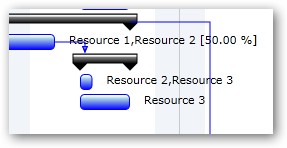
Resource names in gantt chart.
But, you can hide this if necessary as follows:
|
$('#container').GanttControl({ .... .... ShowAssignedResourcesText : false, }); |
� RadiantQ 2022. All Rights Reserved.