|
RadiantQ jQuery Gantt Package
WBS Support
|   |
|
RadiantQ jQuery Gantt Package
WBS Support
| |
WBS Support
Work Breakdown Structure (WBS) codes are outline numbers that you can apply to tasks and edit to match your business needs.
You can setup a default outline numbering scheme which will be used by the gantt as the user adds/deletes/moves tasks around. And you can also allow your end-users to edit the WBS codes and provide their own for specific tasks.
NOTE: WBS is illustrated in the sample Samples\WBSEnabledTasks. Use that as a companion resource while you read through this topic.
Turning On WBS for tasks
To begin with, you can turn on this feature by providing a method to the ProvideWBSID that will compute the WBS for a given task. For example:
|
$('#gantt_container').GanttControl({ ................ ........... WBSIDBinding: new RadiantQ.BindingOptions("WBSID"), ProvideWBSID: ProvideWBSIDHandler, });
// Generate WBS codes of the form 1.10.1 function ProvideWBSIDHandler(sender, args) { var parent = args.Activity.Parent; var childIndex = (args.GetActivityChildIndex() + 1).toString(); if (parent == null) args.NewWBSID = childIndex; else args.NewWBSID = parent.DefaultWBSID + "." + childIndex; } |
This will set an corresponding, appropriate WBS code on all the activities that are in the model. You can visualize this WBS in the Gantt UI by adding a column to the Gantt's grid as follows:
|
var columns = [ { field: "Activity_M().ID_M()", title: "ID", width: 25, iseditable: false }, { field: "Activity_M().ActivityName_M()", title: "Activity Name", width: 200, editor: RadiantQ.Default.Template.ProjectGanttExpandableTextboxEditor(), template: RadiantQ.Default.Template.ProjectGanttExpandableTextBlockTemplate() }, { field: "Activity_M().WBSID_M()", title: "WBS", isParentEditable: false, editor: "<input data-bind='value:Activity_M().WBSID_M' />", width: 100 }, ................ ............... ] |
This will add the WBS code to all the activities, and keep it updated as you move the tasks around.
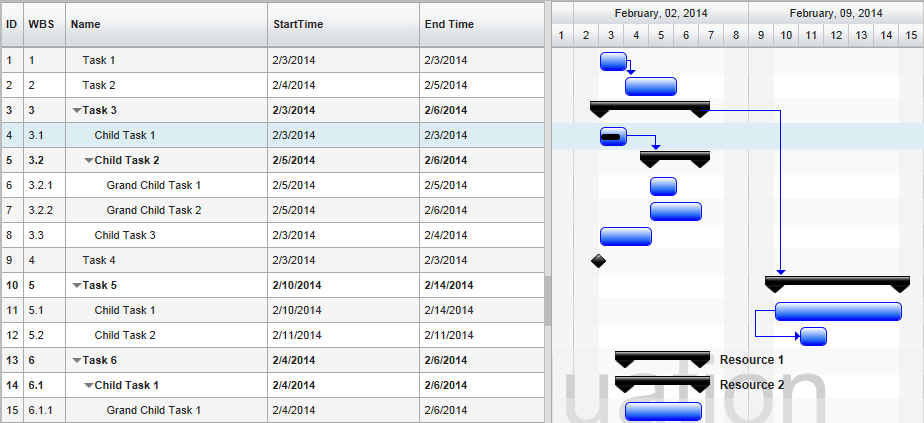
Gantt With WBS
To access a WBS of any activity, you can use the Activity.WBSID property.
Persisting WBS Codes
You can now optionally choose to persist the WBS codes into your database by setting up the WBSIDBinding property.
|
$('#gantt_container').GanttControl({ ................ ........... WBSIDBinding: new RadiantQ.BindingOptions("WBSID") }); |
This will persist the WBS code assigned to a task into your data source that you can reference from outside the gantt, if necessary.
Enable End-User Editing
You can also optionally choose to allow the end-user to edit the WBS codes assigned to a task. First enable editing in the WBS column as below:
|
var columns = [ { field: "Activity_M().WBSID_M()", ................ ........... editor: "<input data-bind='value:Activity_M().WBSID_M' />", }
|
User can then start editing and specify any string value they see fit as the WBS code for any task:
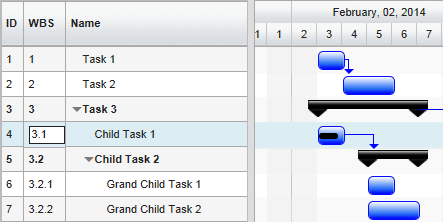
WBS Editing
The gantt will then preserve this WBS code as the task is moved around in the hierarchy. To distinguish such user-specified WBS and auto-generated WBS, the activity interface has the following properties:
Activity.WBSID - The current WBSID assigned to this activity. This could be the auto-generated one or end-user edited one.
Activity.IsAutoWBSID - This bool property indicates if the above WBSID property has a auto-generated value (true) or a end-user provided value(false).
Activity.DefaultWBSID - The auto-generated WBSID for this activity.
The end-user can also clear a custom WBSID that he might have set on a task by simply editing and clearing the text in the TextBox. This will make the gantt assign the auto generated WBS value to the task.
The edited values are then persisted into the database if the WBSIDBinding is set.
Note that while persisting, to distinguish auto-generated and custom WBS values, the custom values are prefixed with a "*". If you browse these WBS values directly in the database, remember to trim this "*" out before you use it.
This is illustrated in this samples:
In HTML : ..\Samples\WBSEnabledTasks.htm.
In ASP.NET MVC : ..\Views\Home\ProjectGantt\WBSEnabledTasks.cshtml.
In ASP.NET : ..\Samples\ProjectGantt\WBSEnabledTasks.aspx.
© RadiantQ 2022. All Rights Reserved.