|
RadiantQ jQuery Gantt Package
Task Bar Labels
|   |
|
RadiantQ jQuery Gantt Package
Task Bar Labels
| |
Task Bar Labels
You also have an option to show some text to the right side of the taskbar using jQuery-template , below code shows how to do this. See how a custom "tTemplate" is defined.
|
var tTemplate = "<div data-bind=\"attr: { 'class': RQDataContext.ProgressPercent() > 50 ? 'rq-gc-taskbar bluebar-style' : 'rq-gc-taskbar greenbar_style'}\" ><div data-bind=\"text: RQDataContext.Description()\" class='rq-gc-taskbar-label'></div></div>"; var $gantt_container = $('#gantt_container'); $gantt_container.GanttControl({
DataSource: viewModel.Tasks(), TaskItemTemplate: tTemplate, KnockoutObjectName: "viewModel", GanttTableOptions: { columns: columns, }, GanttChartTemplateApplied: function (sender , args) { ... } }); |
|
In ASP.NET MVC |
|
@Html.JQProjectGantt( new JQProjectGanttSettings() { ControlId = "gantt_container", AfterDataRetrievedCallback = "AfterDataRetrievedCallback", AfterGanttWidgetInitializedCallback = "AfterGanttWidgetInitializedCallback", DataSourceUrl = new Uri("/Home/GanttControlItemSource", UriKind.RelativeOrAbsolute), Options = new ProjectGanttOptions() { IDBinding = new Binding("ID"), NameBinding = new Binding("Name"), IndentLevelBinding = new Binding("IndentLevel"), StartTimeBinding = new Binding("StartTime"), EffortBinding = new Binding("Effort"), PredecessorIndicesBinding = new Binding("PredecessorIndices"), ProgressPercentBinding = new Binding("ProgressPercent"), KnockoutObjectName = "viewModel", GanttTableOptions = { columns: columns, }, // KO Templates are used here to color the bars differently based on the progress value. KO will trigger this binding every time the bound value changes and affect the look appropriately. TaskItemTemplate = "<div data-bind=\"attr: { 'class': RQDataContext.ProgressPercent() > 50 ? 'rq-gc-taskbar bluebar-style' : 'rq-gc-taskbar greenbar_style'}\" ><div data-bind=\"text: RQDataContext.Description()\" class='rq-gc-taskbar-label'></div></div>", GanttChartOptions = new GanttChartOptions() { AnchorTime = DateTime.Today } } }) |
|
In ASP.NET |
|
<script runat="server"> protected void gantt_Load(object sender, EventArgs e) { this.gantt.TaskItemTemplate = "<div data-bind=\"attr: { 'class': RQDataContext.ProgressPercent() > 50 ? 'rq-gc-taskbar bluebar-style' : 'rq-gc-taskbar greenbar_style'}\" ><div data-bind=\"text: RQDataContext.Description()\" class='rq-gc-taskbar-label'></div></div>"; } </script> <RQ:GanttControl ID="gantt" OnLoad="gantt_Load" HierarchyResolverFunction="ResolverFunction".... runat="server" /> |
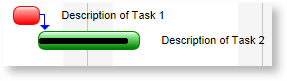
Task Bar with custom Labels on the right.
The ....Samples\GanttControlSkeletonUsingKO sample illustrates how to display label in gantt chart.
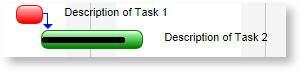
User can also able to move label to any side of the taskbar by overridding "rq-gc-taskbar-label" class in html and can set margins and padding. For example if you want to place rq-gc-taskbar-label top-right of taskbar you can do it like this.
|
<style type="text/css"> .rq-gc-taskbar-label { padding-top: 0px; float: right; height: auto; width: auto; } </style> |
© RadiantQ 2022. All Rights Reserved.