|
RadiantQ jQuery Gantt Package
Runtime Interaction
|   |
|
RadiantQ jQuery Gantt Package
Runtime Interaction
| |
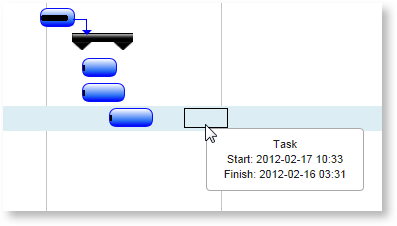
A tasks's StartTime can be changed by simply dragging them to the left or right in the GanttChart.
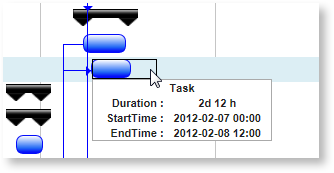
The task's EndTime can be changed by resizing it.
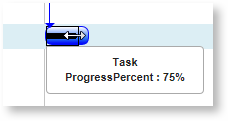
The task's ProgressPercent can also be visually changed by dragging the progress bar.
The above can also be edited directly on the activity instance and the changes will be reflected in the chart.
Editing Dependency Lines
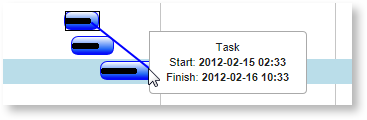
You can connect 2 tasks with a dependency line visually in the GanttChart.
Existing dependency lines can also be deleted or edited through the dependencies list in the gantt model and the changes will automatically reflect in the chart.
Adding a dependency line visually as above results in a "FinishToStart" type dependency, but if you want to specify a different type of dependency, you will have to provide a UI where the dependency type can be edited and the changed applied on the dependency instance in the model directly.
Example Predecessors field values:
9 - Task with ID 9.
9SS - Task with ID 9 and with StartToStart dependency.
9SS + 4 - Task with ID 9, with StartToStart dependency and with a 4 hour lag.
9SS, 8FF - Task with ID 9 with StartToStart dependency and Task with ID 8 and with FinishToFinish dependency.
Indent and Outdent
The parent-child relationship between adjacent tasks can be affected by indenting and outdenting them. There is no built-in interactivity to let the end-user indent or outdent tasks (this is mainly because of the lack of context menu support in the framework). However, you can provide menus or buttons to indent/outdent selected tasks with a call to GanttControl.Indent and GanttControl.Outdent methods (as illustrated in several of our samples).
Multiple Indent and Outdent
User can indent/outdent multiple rows by selecting them using ctl+click or shift+click.This feature will not support for undo/redo scenario.
Time Span
To scroll past the visible time span, the end user has to scroll all the way to the right and then use the pane scroll button to scroll past the visible span.
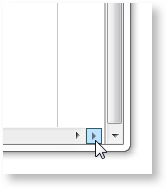
Similarly scroll all the way to the left and click on the pane scroll button to scroll beyond the left most visible time.
© RadiantQ 2022. All Rights Reserved.