|
RadiantQ jQuery Gantt Package
RefreshRowBackground
|   |
|
RadiantQ jQuery Gantt Package
RefreshRowBackground
| |
Custom UI in Row Background
Occasionally, you might have to render some custom UI in a FlexyGantt row's background. For example, to visualize "down times" for your resource.
You do so by first setting EnableCustomRowBackground option to true in FlexyGantt. This will prompt the FlexyGantt to insert a transparent div in the row background spanning the entire chart's view span and then raise the RefreshRowBackground event where you can insert your custom UI elements into the 'background div'.
The code below illustrates how this can be setup. In this sample, we render some "gray rectangles" that represent non-working hours in a defined schedule. We also use a utility function, RenderNonWorkingHours, to easily render these rectangles. However, you can simply add any child UI elements to the bgDiv.
|
$gantt_container.FlexyGantt({ ............ ............ EnableCustomRowBackground: true, GanttChartTemplateApplied: function (sender , args) { var flexyGantt = $gantt_container.data("FlexyGantt"); var GanttChart = flexyGantt.GetGanttChart().data("GanttChart"); // RefreshRowBackground event is raised every time the row's span changes GanttChart.RefreshRowBackground.subscribe(function (bgDiv, args) { // bgDiv - The div inside which you should add your custom UI elements. // args - // args.GanttChart - Reference to the GanttChart widget. // args.Data - Reference to the FlexyNodeData of the row. var data = args.Data._data; var scheduleID = data.ScheduleID; var schedule = getSchedule(scheduleID); if (schedule) RadiantQ.FlexyGantt.RenderNonWorkingHours(bgDiv, 'grayBGStyle', args.GanttChart, schedule); }); } }); |
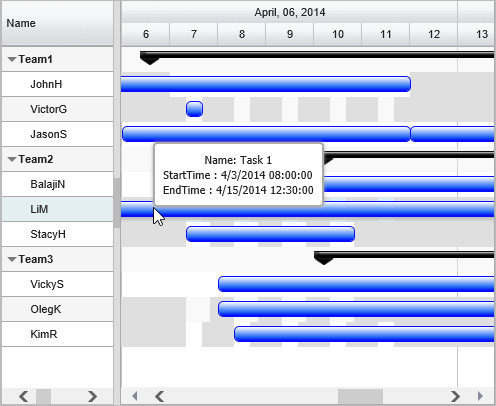
Non working times in a schedule rendered with gray background
Note that if you have to render some rectangular divs at specific times, the following utility methods will be of help:
ConvertTimeToX: Will Converts a specified datetime to it's X location.
|
var x = ganttChart.ConvertTimeToX(DateTime); |
ConvertToNextWorkingTime: If the specified datetime is a "working time" returns that, and if not returns the next closest valid work time.
|
var workingTime = workTimeSchedule.ConvertToNextWorkingTime(DateTime); |
ConvertToNextWorkingTimeIntervals: Returns the different TimeIntervals that the work will spawn given the start time and duration of the activity.
|
var viewSpan = new TimeSpan(viewComputedEnd - viewComputedStart); var timePeriods = workTimeSchedule.ConvertToNextWorkingTimeIntervals(viewComputedStart, viewSpan, null); |
This is illustrated in this samples:
In HTML : ..\Samples\FGCustomResourceLevelSchedules.htm.
In ASP.NET MVC : ..\Views\Home\FlexyGantt\FGCustomResourceLevelSchedules.cshtml.
In ASP.NET : ..\Samples\FlexyGantt\FGCustomResourceLevelSchedules.aspx.
© RadiantQ 2022. All Rights Reserved.