|
RadiantQ jQuery Gantt Package
Printing
|   |
|
RadiantQ jQuery Gantt Package
Printing
| |
Printing
By default, the gantt will print with the currently visible grid table and timeline in the chart with about 25 rows per page.
For example,
|
RadiantQ.Gantt.RQPrint($gantt_container.data("GanttControl")); |
Print output,
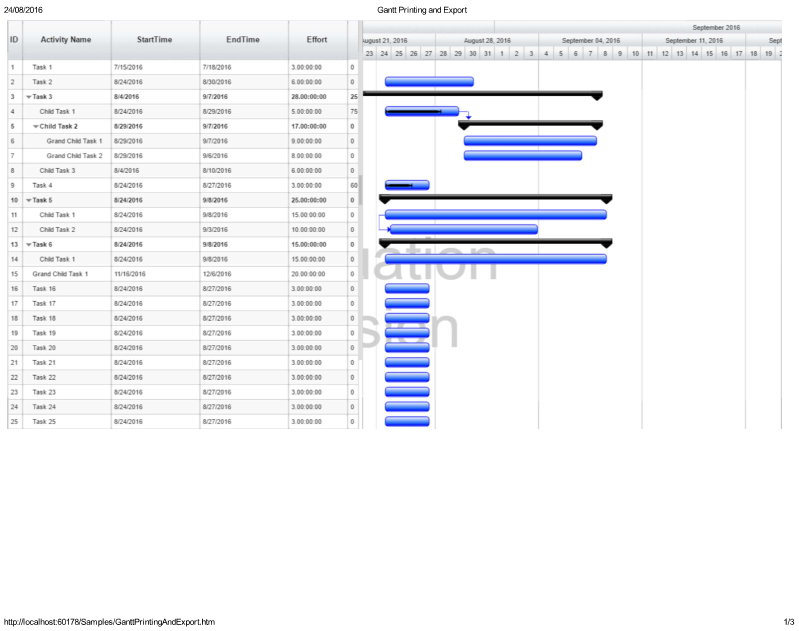
Default Gantt printing (page 1)
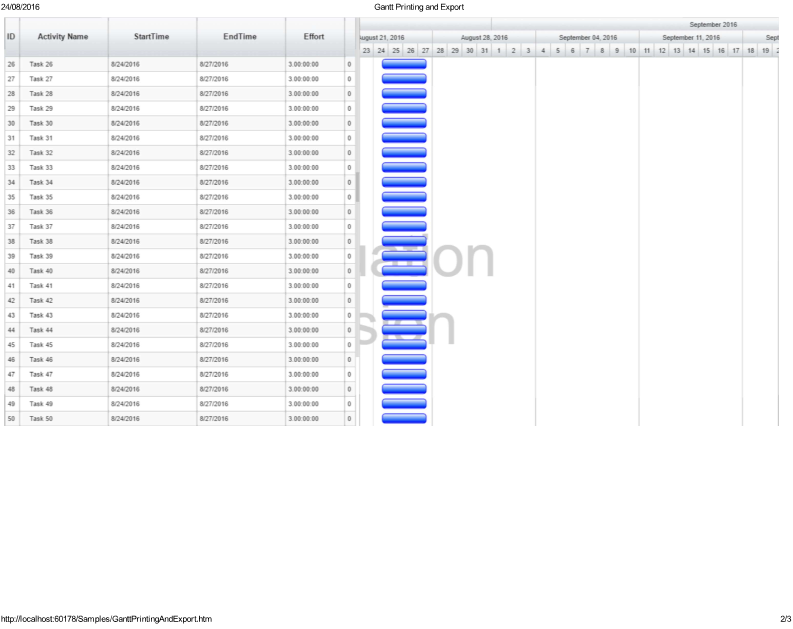
Default Gantt printing (page 2)
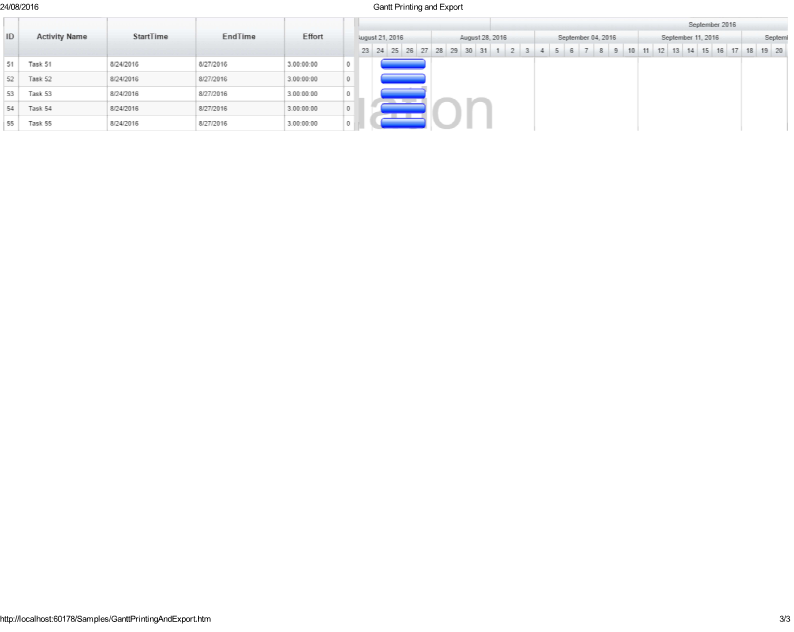
Default Gantt printing (page 3)
There are some print options available to customize the default behavior as described below.
1) Customizing the number of rows in page
Use the NoOfRowsInPage option before printing to desire how many rows should print per page.
For example,
|
var printOptions = new RadiantQ.Gantt.PrintOptions(); printOptions.NoOfRowsInPage = 50; RadiantQ.Gantt.RQPrint($gantt_container.data("GanttControl"), printOptions); |
Print output,
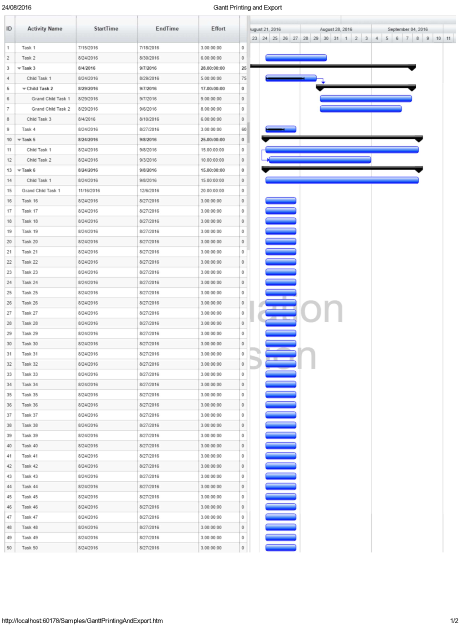
Gantt printing with the given number of rows per page (page 1)
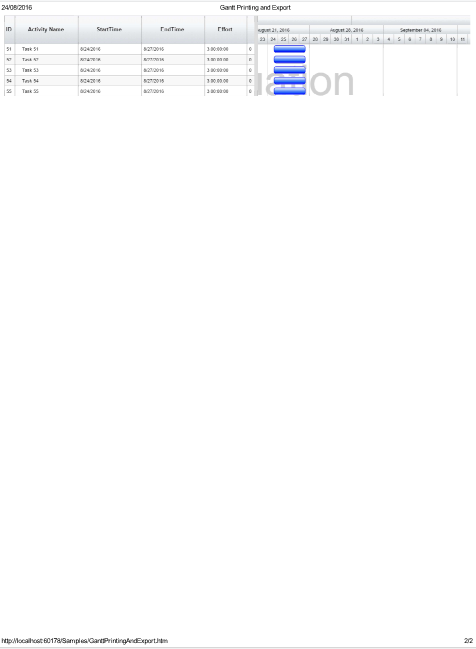
Gantt printing with the given number of rows per page (page 2)
2) Printing only the Gantt Chart
Enable ShowGanttChartOnly option before printing to hide the grid table and to print only the gantt chart.
For example,
|
var printOptions = new RadiantQ.Gantt.PrintOptions(); printOptions.ShowGanttChartOnly = true; RadiantQ.Gantt.RQPrint($gantt_container.data("GanttControl"), printOptions); |
Print output,
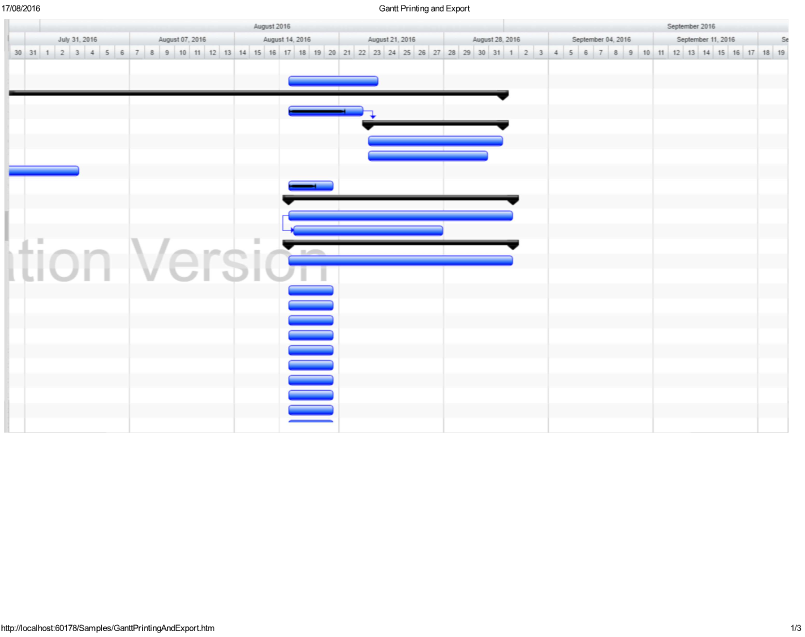
Gantt printing on showing only the gantt chart (page 1)
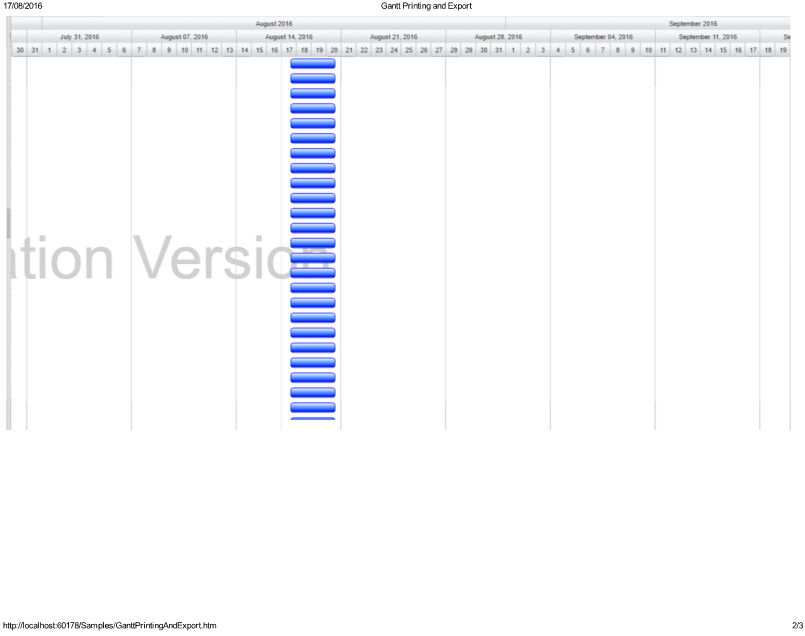
Gantt printing on showing only the gantt chart (page 2)
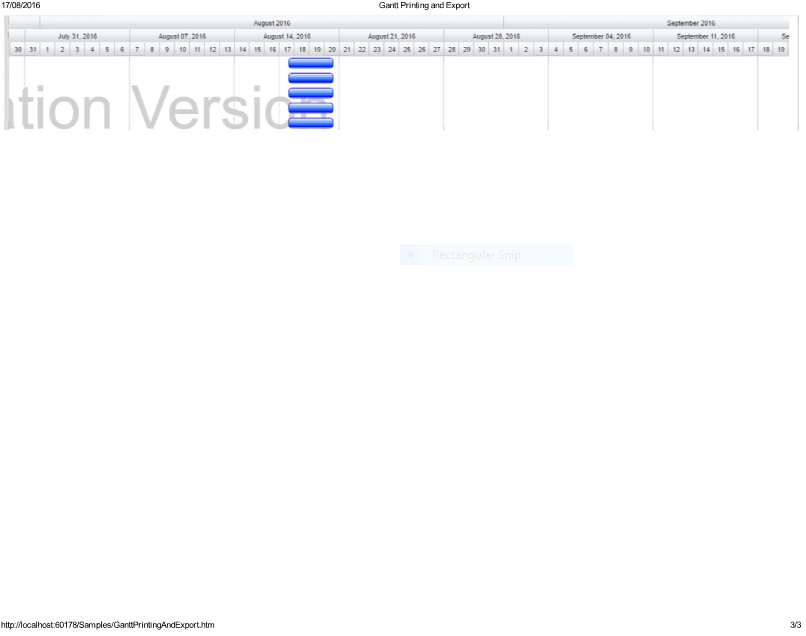
Gantt printing on showing only the gantt chart (page 3)
3) Printing only the Grid table
Enable ShowGanttTableOnly option before printing to hide the gantt chart and to show only the grid table.
For example,
|
var printOptions = new RadiantQ.Gantt.PrintOptions(); printOptions.ShowGanttTableOnly = true; RadiantQ.Gantt.RQPrint($gantt_container.data("GanttControl"), printOptions); |
Print output,
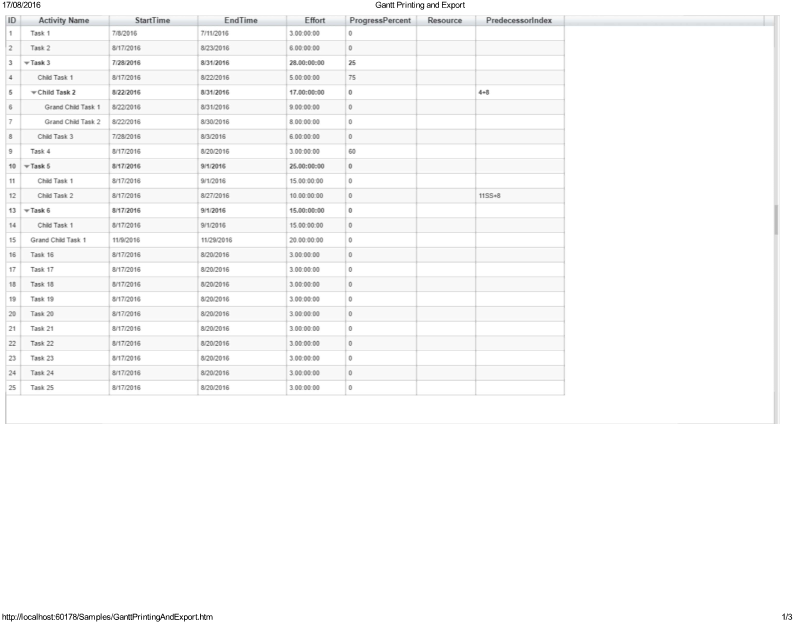
Gantt printing on showing only the gantt table (page 1)
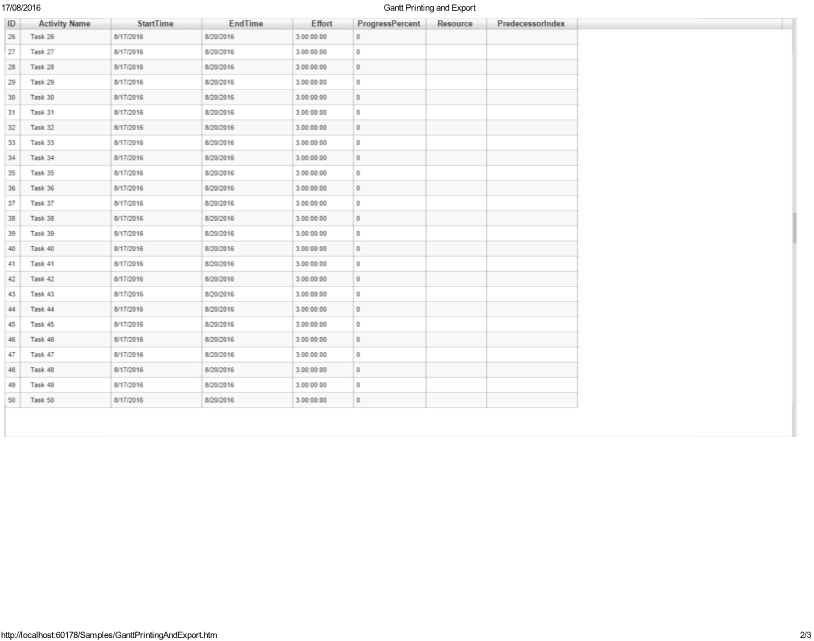
Gantt printing on showing only the gantt table (page 2)
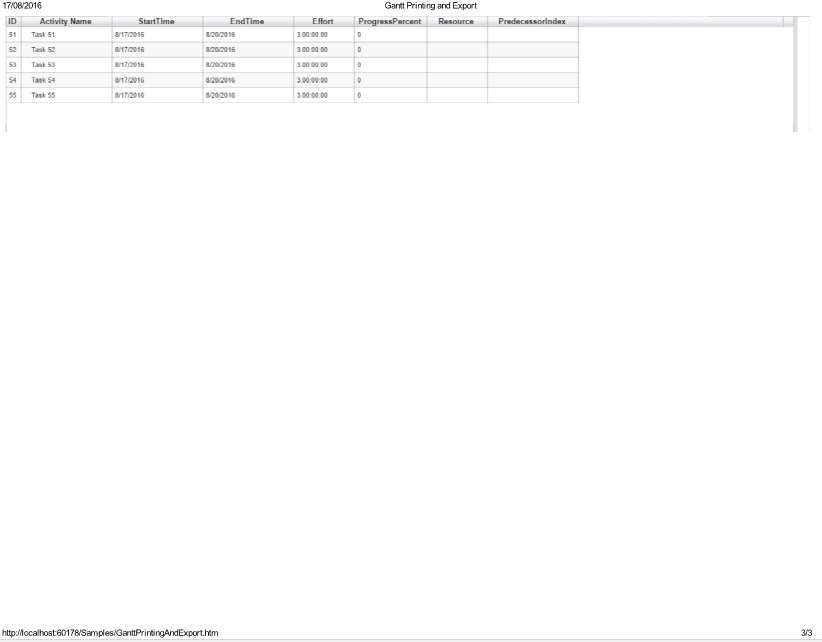
Gantt printing on showing only the gantt table (page 3)
4) Printing by range index
Use the StartRowIndex and EndRowIndex options before printing to print gantt within the specified row indices.
For example,
|
var printOptions = new RadiantQ.Gantt.PrintOptions(); printOptions.StartRowIndex = 10; printOptions.EndRowIndex = 30; RadiantQ.Gantt.RQPrint($gantt_container.data("GanttControl"), printOptions); |
Print output,
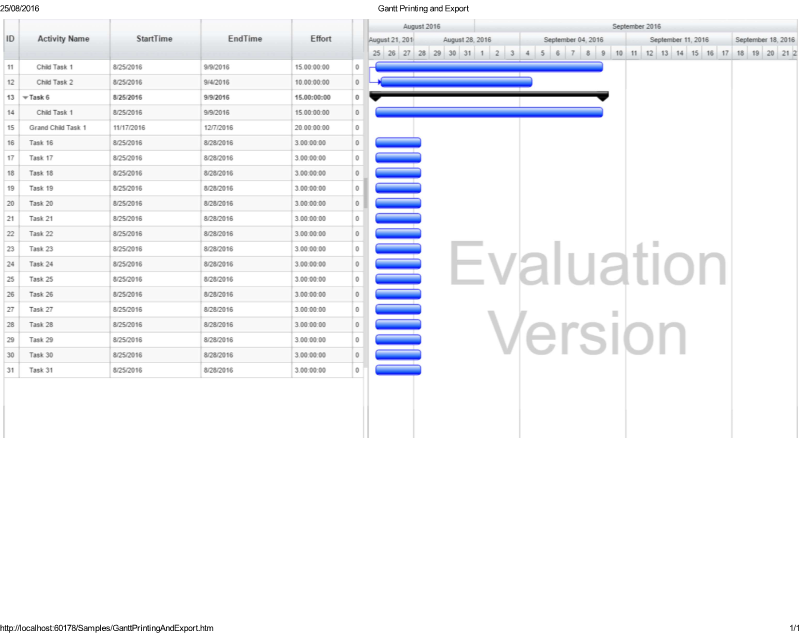
Gantt printing within the specified row indices
5) Customizing the title of the page
Use the Title option to overwrite the default title of the print output.
For example,
|
var printOptions = new RadiantQ.Gantt.PrintOptions(); printOptions.Title = "Custom Print Title"; RadiantQ.Gantt.RQPrint($gantt_container.data("GanttControl"), printOptions); |
6) Selecting the Columns to print
Use the VisibleColumnIndices to specify the column indices which should be included in the print output.
For example,
|
var printOptions = new RadiantQ.Gantt.PrintOptions(); printOptions.VisibleColumnIndices = [0, 1, 2]; RadiantQ.Gantt.RQPrint($gantt_container.data("GanttControl"), printOptions); |
Print output,
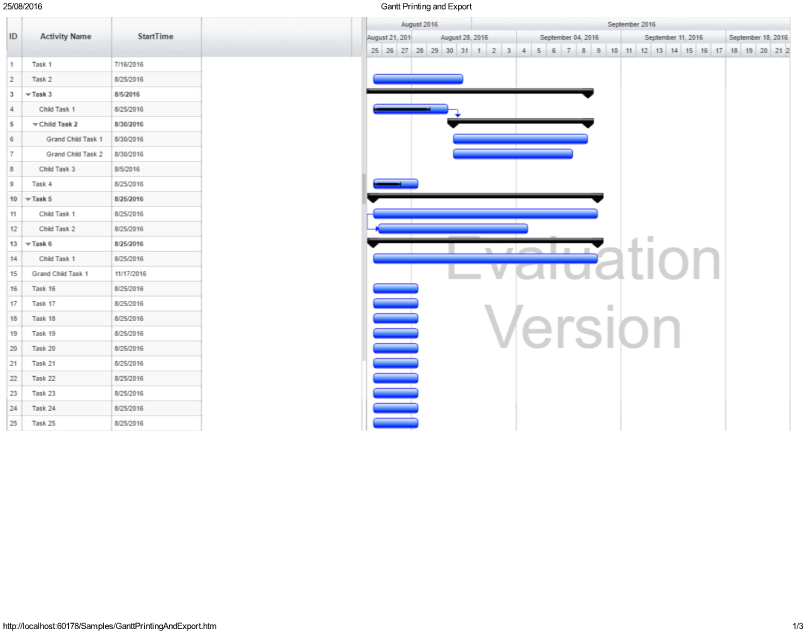
Gantt output with a subset of the columns (page 1)
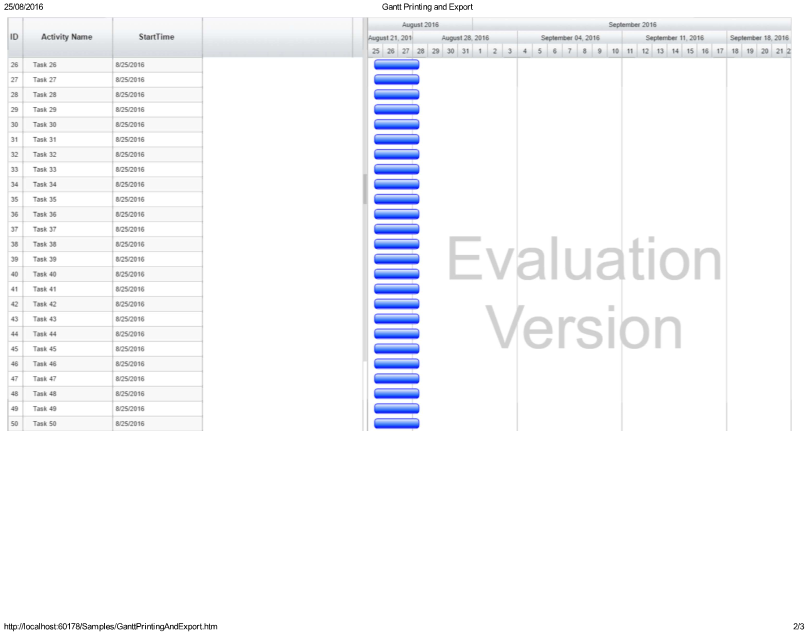
Gantt output with a subset of the columns (page 2)
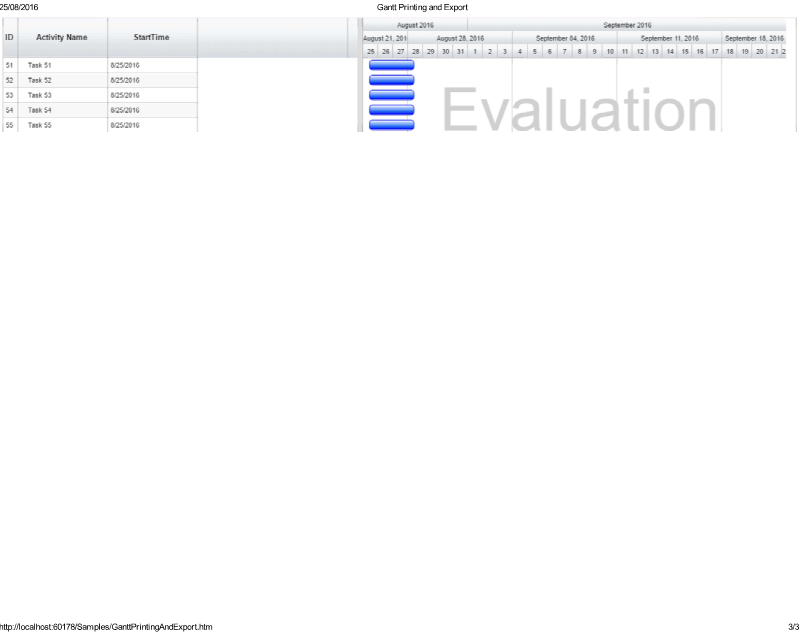
Gantt output with a subset of the columns (page 3)
7) Customizing the Gantt Chart Timeline
Use the ViewStartTime and ViewEndTime options while printing to customize the timeline with which to print the gantt chart.
For example,
|
var printOptions = new RadiantQ.Gantt.PrintOptions(); printOptions.ViewStartTime= new Date(2016, 7, 15); printOptions.ViewEndTime= new Date(2016, 8, 15); RadiantQ.Gantt.RQPrint($gantt_container.data("GanttControl"), printOptions); |
Print output,
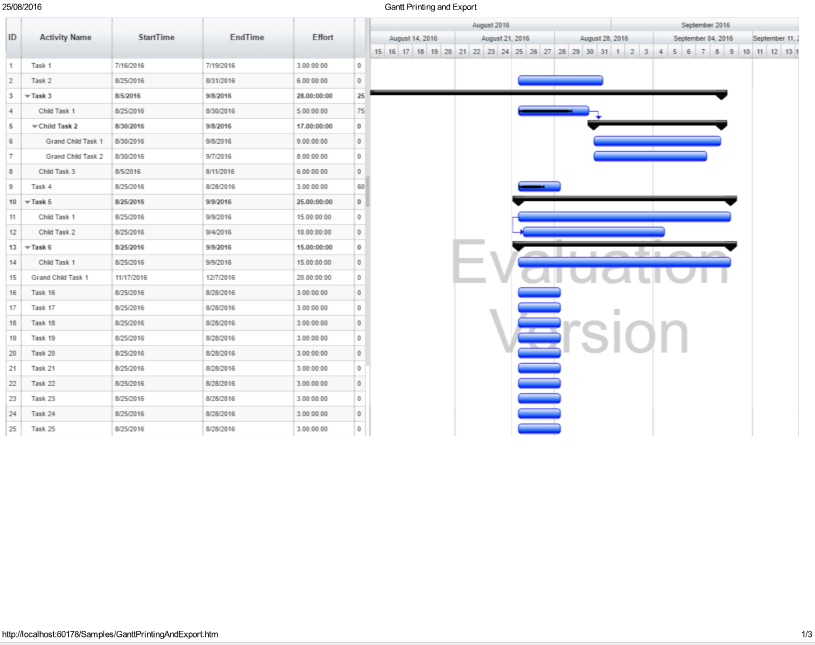
Gantt output with the given ViewStartTime and ViewEndTime (page 1)
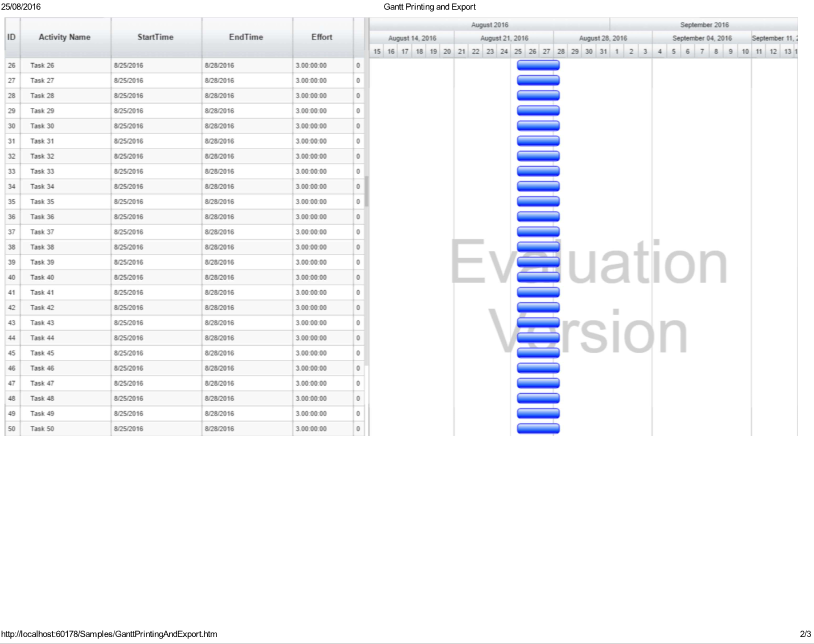
Gantt output with the given ViewStartTime and ViewEndTime (page 2)
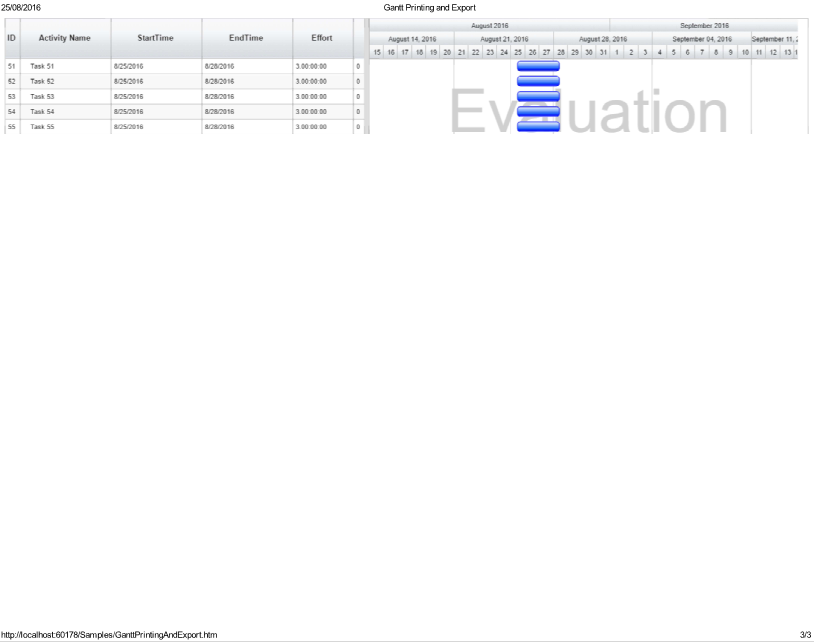
Gantt output with the given ViewStartTime and ViewEndTime (page 3)
Required references for this feature
This feature requires you to include the "html2canvas.js" file in your web page. This file is available at ..\Samples\Scripts\html2canvas.js.
Gantt Printing is illustrated in "..\Samples\GanttPrintingAndExport.htm" sample.
NOTE : Currently we are not supporting Printing and ExportingToImage in IE8.
� RadiantQ 2022. All Rights Reserved.