|
RadiantQ jQuery Gantt Package
In ASP.NET MVC
|   |
|
RadiantQ jQuery Gantt Package
In ASP.NET MVC
| |
Create a new ASP.NET MVC project in Visual Studio:
FILE --> New --> Project --> ASP.NET MVC 4 Web Application -> select Internet Application(Select Razor Engine)
1) Gantt Widget Source JS files
To begin with, you need the JS Source files that are required by the Gantt Widget. These files are in the <install path>/Src folder. Copy over this folder into the above Project folder (though this folder is very big in size, it contains the required CSS, etc for all Themes, locales, etc. and not all of them will be loaded inside your page).
Go ahead and remove the bin folder inside this Src folder.
Then in the project's Solution Explorer click on the "Show All Files" toolbar item to show this newly included Src folder and include that in the project.

include Src folder in project
2) Sample Utility JS files
Some JS files with utility functions that enables inline-editing in the grid, etc. are in the <install path>/Samples/Scripts folder. Copy over the contents of the Scripts folder from the above install path into the Scripts folder in your project folder (when you create a new project a Scripts folder would be automatically created in your project folder).
Then include the newly added Script files into your project following the same procedure as in the previous step.
3) Create a sample Data Source(JSON Data)
You will typically use an Entity Model, ADO.NET, etc. to retrieve data from a database. But, to keep things simple, we will create a simple list of “projects” and return it to the client from the server.
Create a new type called Project and Task. In Solution Explorer right click on the Project name, then Add --> New Item --> class (call it project.cs) and define a class like below.
|
public class Project { public Project() { this.Tasks = new System.Collections.ObjectModel.ObservableCollection<Task>(); } public string PName { get; set; } public System.Collections.ObjectModel.ObservableCollection<Task> Tasks { get; set; } public DateTime OverallStartTime { get; set; } public DateTime OverallEndTime { get; set; }
} public class Task { public string Status; public string TaskName { get; set; } public DateTime StartTime { get; set; } public DateTime EndTime { get; set; } public double Progress { get; set; } public bool IsOverlapping { get; set; } public object Tag { get; set; } } |
Create a sample Data Source
Prepare a sample hierarchical list that will be bound to the Gantt.Prepare a sample list of the above project instances. This method must be inside theHomeController class Controllers/HomeController.cs
|
public class HomeController : Controller { public ActionResult GetFlexyGanttItemSource() { DateTime dtS = DateTime.Now; System.Collections.ObjectModel.ObservableCollection<Project> projects = new System.Collections.ObjectModel.ObservableCollection<Project>(); Project prj = new Project() { PName = "Project1", OverallStartTime = dtS + TimeSpan.FromDays(1), OverallEndTime = dtS + TimeSpan.FromDays(6) }; prj.Tasks.Add(new Task() { StartTime = dtS, EndTime = dtS + TimeSpan.FromDays(2), TaskName = "John's Task 3" }); prj.Tasks.Add(new Task() { StartTime = dtS + TimeSpan.FromDays(3), EndTime = dtS + TimeSpan.FromDays(4), TaskName = "John's Task 2" }); projects.Add(prj); prj = new Project() { PName = "Project2", OverallStartTime = dtS + TimeSpan.FromDays(1.5), OverallEndTime = dtS + TimeSpan.FromDays(5.5) }; prj.Tasks.Add(new Task() { StartTime = dtS + TimeSpan.FromDays(1), EndTime = dtS + TimeSpan.FromDays(4), TaskName = "Victor's Task" }); projects.Add(prj); prj = new Project() { PName = "Project3", OverallStartTime = dtS + TimeSpan.FromDays(2), OverallEndTime = dtS + TimeSpan.FromDays(5) }; prj.Tasks.Add(new Task() { StartTime = dtS + TimeSpan.FromDays(1), EndTime = dtS + TimeSpan.FromDays(4), TaskName = "Jason's Task 1" }); prj.Tasks.Add(new Task() { StartTime = dtS + TimeSpan.FromDays(7), EndTime = dtS + TimeSpan.FromDays(9), TaskName = "Jason's Task 2" }); projects.Add(prj); prj = new Project() { PName = "Project4", OverallStartTime = dtS + TimeSpan.FromDays(0.5), OverallEndTime = dtS + TimeSpan.FromDays(3.5) }; prj.Tasks.Add(new Task() { StartTime = dtS + TimeSpan.FromDays(1.5), EndTime = dtS + TimeSpan.FromDays(4), TaskName = "Vicky's Task" }); projects.Add(prj); prj = new Project() { PName = "Project5", OverallStartTime = dtS + TimeSpan.FromDays(2), OverallEndTime = dtS + TimeSpan.FromDays(6) }; prj.Tasks.Add(new Task() { StartTime = dtS + TimeSpan.FromDays(2.2), EndTime = dtS + TimeSpan.FromDays(3.8), TaskName = "Oleg's Task 1" }); prj.Tasks.Add(new Task() { StartTime = dtS + TimeSpan.FromDays(5), EndTime = dtS + TimeSpan.FromDays(6), TaskName = "Oleg's Task 2" }); prj.Tasks.Add(new Task() { StartTime = dtS + TimeSpan.FromDays(8), EndTime = dtS + TimeSpan.FromDays(9.6), TaskName = "Oleg's Task 3" }); projects.Add(prj); prj = new Project() { PName = "Project6", OverallStartTime = dtS + TimeSpan.FromDays(2.5), OverallEndTime = dtS + TimeSpan.FromDays(4.5) }; prj.Tasks.Add(new Task() { StartTime = dtS + TimeSpan.FromDays(0.8), EndTime = dtS + TimeSpan.FromDays(2), TaskName = "Kim's Task" }); projects.Add(prj); var result = this.Json(projects, JsonRequestBehavior.AllowGet); return result; } } |
4) CSHTML file including the Gantt Widget
Create the .cshtml sample file
In the visual studio right click on the views folder and Add -> View ( call it as view1.cshtml)
Add the RadiantQ.Web.JQGantt.dll to your project reference , you can find the dll here: <install folder>\Src\bin\DotNET4MVC4\RadiantQ.Web.JQGantt.dll.
Include the following namespaces in Web.config
|
<pages> <namespaces> <add namespace="RadiantQMVC" /> <add namespace="RadiantQ.Web.JQGantt" /> <add namespace="RadiantQ.Web.JQGantt.Common" /> </namespaces> </pages> |
And Include this Following namespace in your cshtm page.
|
Include the following script reference. Make sure to link to the right version of the jQuery Gantt Package source in the last but one reference below.
|
<script src="~/Src/Scripts/jquery-1.11.2.min.js"></script> <link id="themeChooser" href="~/Src/Styles/jQuery-ui-themes/smoothness/jquery-ui.css" rel="stylesheet" /> <link id="default" href="~/Src/Styles/radiantq.gantt.default.css" rel="stylesheet" /> <link id="gridCss" href="~/Src/Styles/VW.Grid.css" rel="stylesheet" /> <script src="~/Src/Scripts/jquery-ui-1.11.4/jquery-ui.min.js"></script> <script type="text/javascript" src="~/Src/Scripts/jquery.layout-latest.min.js"></script> <script src="~/Src/Scripts/Utils/date.js"></script> <script src="~/Src/ResourceStrings/en-US.js"></script> <script src='~/Src/Scripts/VW.Grid.1.min.js' type='text/javascript'></script> <script src='~/Src/Scripts/RadiantQ-jQuery.Gantt.5.0.trial.min.js' type='text/javascript'></script> <script src='~/Src/Scripts/RQGantt_Init.min.js' type='text/javascript'></script> |
Make sure you are not including the jQuery file in _Layout.cshtml, by default the jQuery file including line look likes this in _Layout.cshtml,
@Scripts.Render("~/bundles/jquery")
Creating FlexyGantt
Now include code to retrieve the json file you created above and then initialize the FlexyGantt widget binding it with the loaded data.
|
@Html.JQFlexyGantt( new JQFlexyGanttSettings() { ControlId = "gantt_container", DataSourceUrl = new Uri("/Home/GetFlexyGanttItemSource", UriKind.RelativeOrAbsolute), Options = new FlexyGanttOptions() { HierarchyResolverFunction = "ResolverFunction", ParentTaskStartTimeProperty = "OverallStartTime", ParentTaskEndTimeProperty = "OverallEndTime", TaskStartTimeProperty= "StartTime", TaskEndTimeProperty= "EndTime", TaskItemTemplate = "<div class='rq-gc-taskbar'><div class='rq-taskbar-dragThumb'></div><div class='start-resizeThumb'></div><div class='rq-taskbar-resizeThumb'></div></div>", ParentTaskItemTemplate = "<div class='parentBar-style'><div class='rq-taskbar-dragThumb'></div><div class='start-resizeThumb'></div><div class='rq-taskbar-resizeThumb'></div><div class='rq-gc-parentBar-leftCue'></div><div class='rq-gc-parentBar-middle'></div><div class='rq-gc-parentBar-rightCue'></div></div>", GanttChartOptions = new GanttChartOptions() { AnchorTime = DateTime.Today } } } )
<!-- Div that will be transformed into the FlexyGantt widget above.--> <div id="gantt_container" style="height: 450px;"> </div> |
Initializing the Gantt Table
Now you have to setup the different column you want to show in the GanttTable. You can do so by defining GanttTableOptions
|
@Html.JQFlexyGantt( new JQFlexyGanttSettings() { ControlId = "gantt_container", DataSourceUrl = new Uri("/Home/GetFlexyGanttItemSource", UriKind.RelativeOrAbsolute), Options = new FlexyGanttOptions() { GanttTableOptions = new GanttTableOptions() { Columns = new Columns(){ new Column(){ field = "Name", title = "Name", width = 110, clientEditorTemplate="flexyGantNameEditor", clientTemplate = "flexyGanttNameColumnTemplate" } } }, HierarchyResolverFunction = "ResolverFunction", TaskTooltipTemplateID="TaskTooltipTemplate", ParentTaskStartTimeProperty = "OverallStartTime", ParentTaskEndTimeProperty = "OverallEndTime", TaskStartTimeProperty= "StartTime", TaskEndTimeProperty= "EndTime", TaskItemTemplate = "<div class='rq-gc-taskbar'><div class='rq-taskbar-dragThumb'></div><div class='start-resizeThumb'></div><div class='rq-taskbar-resizeThumb'></div></div>", ParentTaskItemTemplate = "<div class='parentBar-style'><div class='rq-taskbar-dragThumb'></div><div class='start-resizeThumb'></div><div class='rq-taskbar-resizeThumb'></div><div class='rq-gc-parentBar-leftCue'></div><div class='rq-gc-parentBar-middle'></div><div class='rq-gc-parentBar-rightCue'></div></div>", GanttChartOptions = new GanttChartOptions() { AnchorTime = DateTime.Today } } } ) |
Converters Functions
Here are some converter functions that provide value to FlexyGantt from the bound objects.
|
<script type="text/javascript"> //to resolve the hierarchical data source. function ResolverFunction(data) { // If data is wrapped by KO, then data itself could be a function and so we pick the object from the function. if ($.isFunction(data)) { data = data()[0]; } if (data['PName'] != undefined) { if (data['Tasks'] != undefined) { if ($.isFunction(data['Tasks'])) return data['Tasks'](); else return data['Tasks']; } else // Return an empty array to keep this a collapsible parent with no children. Return null to make this a leaf node. return new Array(); } return null; } //To resolve the hierarchical data source. nameConverter = function (flexyNodeData) { var data; // The grid calls this converter with flexyNodeData as a arg. if (flexyNodeData) data = flexyNodeData.Data(); // The grid calls this converter with flexyNodeData as a datacontext. else data = this.data; if (data["PName"]) return data["PName"]; else if (data["TaskName"]) return data["TaskName"]; return; } </script> |
The gantt is now fully setup to display tasks returned from the controller .
Make view1.cshtml as "Start Page".
create a ActionResult in Homecontroller that will return your page as view
|
public ActionResult View1() { return View("View1"); } |
In App_Start/RouteConfig.cs change the routes action to "View1"
|
routes.MapRoute( name: "Default", url: "{controller}/{action}/{id}", defaults: new { controller = "Home", action = "View1", id = UrlParameter.Optional } ); |
Here is the resultant gantt:
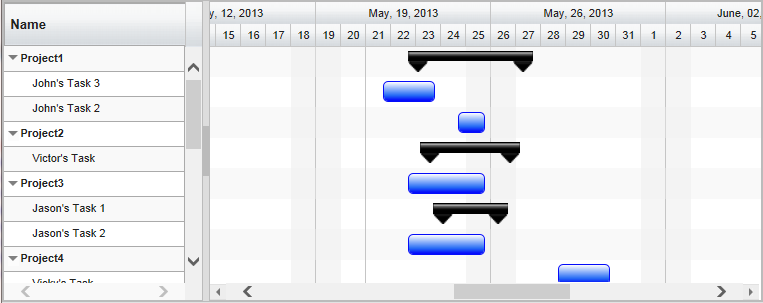
Sample In Browser
Finally, take a look at this topic that show how you can clean up the Src folder in your project to remove unnecessary files.
© RadiantQ 2022. All Rights Reserved.