|
RadiantQ jQuery Gantt Package
Custom UI on Task Bars
|   |
|
RadiantQ jQuery Gantt Package
Custom UI on Task Bars
| |
By default task bars has the progress bar UI. The task bar can be customize by jQuery templates, to render the templates you have to set that to GanttControl.Options.TaskItemTemplate.
Here is the example that shows how to render the time spend bars in task bar.
Sample JSON.
|
[ { "Name": "Task 1", "ID": 1, "StartTime": "2014-02-02T00:00:00Z", "Effort": "08:00:00", "Description": "Description of Task 1", "TimeSpent": "08:00:00" }, { "Name": "Task 2", "ID": 2, "PredecessorIndices": "1", "StartTime": "2014-02-03T00:00:00Z", "Effort": "16:00:00", "Description": "Description of Task 2", "TimeSpent": "08:00:00" } ] |
CSS
|
.timespent-bar { margin-top: 6px; height: 5px !important; z-index: 11 !important; position: relative; border-radius: 7px !important; background-color: red !important; border-color: red !important; -ms-touch-action: none; float: left; } |
JS Code
|
//Task bar template which has the time spend bar var tTemplate = "<div class='rq-gc-taskbar'><div class='rq-taskbar-dragThumb'></div><div class='rq-taskbar-resizeThumb'></div><div class='start-resizeThumb'></div><div class='timespent-bar'></div></div>"; var $gantt_container = $('#gantt_container'); $gantt_container.GanttControl({ ProjectStartDate: anchorTime, DataSource: self.jsonData, IDBinding: new RadiantQ.BindingOptions("ID"), NameBinding: new RadiantQ.BindingOptions( "Name"), IndentLevelBinding: new RadiantQ.BindingOptions("IndentLevel"), StartTimeBinding: new RadiantQ.BindingOptions("StartTime"), EffortBinding: new RadiantQ.BindingOptions("Effort"), PredecessorIndicesBinding: new RadiantQ.BindingOptions("PredecessorIndices"), ProgressPercentBinding: new RadiantQ.BindingOptions("ProgressPercent"), DescriptionBinding: new RadiantQ.BindingOptions("Description"), TaskItemTemplate: tTemplate, OnTaskBarLoad: function (taskbarInstance) {//Time spend bar logic. var ganttChart = taskbarInstance.GanttChart; //To get hold of the data source. var DataSource = taskbarInstance.ActivityView.Activity.DataSource; //ProgressEndTime var progressEnd = taskbarInstance.ActivityView.Activity.ProgressEndTime; var timeSpend = DataSource.TimeSpent; var taskbarInstancestart = taskbarInstance.ActivityView.Activity.StartTime; var timeSpendStart = progressEnd; var timeSpendEnd = taskbarInstance.options.WorkTimeSchedule.GetEnd(progressEnd, timeSpend); var timeSpendStartX = ganttChart.ConvertTimeToX(progressEnd); var timeSpendBarWidth = TimeComputingUtils.ConvertToUnitsOfBaseScaleType(taskbarInstance.GanttChart.options.BaseTimeScaleType, progressEnd, timeSpendEnd, taskbarInstance.GanttChart.options.WorkTimeSchedule) * taskbarInstance.GanttChart.options.BaseTimeUnitWidth; $(this).find("div.timespent-bar").css("width", timeSpendBarWidth + "px"); $(this).find("div.timespent-bar").css("margin-left", taskbarInstance.ProgressBarRectangle.width() + "px"); } }); |
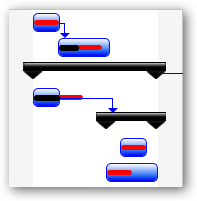
Custom UI On Task Bars
© RadiantQ 2022. All Rights Reserved.