|
RadiantQ jQuery Gantt Package
In HTML
|   |
|
RadiantQ jQuery Gantt Package
In HTML
| |
Your First Gantt
Let us start with creating a new project directory, for example MyFirstGantt.
1) Gantt Widget Source JS files
To begin with, you need the JS Source files that are required by the Gantt Widget. These files are in the <install path>/Src folder. Simply copy over the whole Src folder into the above directory. This folder also has other dependant css files, etc. You can delete the "Src/bin" folder as that's not required for this HTML sample.
2) Sample Utility JS files
Some JS files with utility functions that enables inline-editing in the grid, etc. are in the <install path>/Samples/Scripts folder. Copy over that entire Scripts directory as well into MyFirstGantt.
3) Sample JSON Data
Create a SampleData.json file containing a list of sample tasks to be displayed in the FlexyGantt.
SampleData.json content:
|
[{ "TName" : "Team1", "PStartTime" : "2012-04-02T00:00:00Z", "PEndTime" : "2012-04-18T00:00:00Z", "Resources" : [{ "RName" : "JohnH", "PStartTime" : "2012-04-04T00:00:00Z", "PEndTime" : "2012-04-15T00:00:00Z", "Tasks" : [{ "TaskName" : "Task 1", "StartTime" : "2012-04-03T00:00:00Z", "EndTime" : "2012-04-12T00:00:00Z", "Progress" : 20 }] }, { "RName" : "VictorG", "PStartTime" : "2012-04-06T00:00:00Z", "PEndTime" : "2012-04-18T00:00:00Z", "Tasks" : [{ "TaskName" : "Task 1", "StartTime" : "2012-04-03T00:00:00Z", "EndTime" : "2012-04-18T00:00:00Z", "Progress" : 20 }] }, { "RName" : "JasonS", "PStartTime" : "2012-04-06T00:00:00Z", "PEndTime" : "2012-04-18T00:00:00Z", "Tasks" : [{ "TaskName" : "Task 1", "StartTime" : "2012-04-06T00:00:00Z", "EndTime" : "2012-04-12T00:00:00Z", "Progress" : 20 }, { "TaskName" : "Task 2", "StartTime" : "2012-04-12T00:00:00Z", "EndTime" : "2012-04-18T00:00:00Z", "Progress" : 70 }] }] }, { "TName" : "Team2", "PStartTime" : "2012-04-10T00:00:00Z", "PEndTime" : "2012-04-20T00:00:00Z", "Resources" : [{ "RName" : "BalajiN", "PStartTime" : "2012-04-08T00:00:00Z", "PEndTime" : "2012-04-18T00:00:00Z", "Tasks" : [{ "TaskName" : "Task 1", "StartTime" : "2012-04-08T00:00:00Z", "EndTime" : "2012-04-20T00:00:00Z", "Progress" : 20 }] }, { "RName" : "LiM", "PStartTime" : "2012-04-12T00:00:00Z", "PEndTime" : "2012-04-18T00:00:00Z", "Tasks" : [{ "TaskName" : "Task 1", "StartTime" : "2012-04-08T00:00:00Z", "EndTime" : "2012-04-19T00:00:00Z", "Progress" : 90 }] }, { "RName" : "StacyH", "PStartTime" : "2012-04-05T00:00:00Z", "PEndTime" : "2012-04-20T00:00:00Z", "Tasks" : [{ "TaskName" : "Task 1", "StartTime" : "2012-04-06T00:00:00Z", "EndTime" : "2012-04-12T00:00:00Z", "Progress" : 20 }] }] }] |
4) HTML file including the Gantt Widget
Create a new HTML file inside the project directory (MyFirstGantt) and reference the following source files. Remember to link to the right version of the RadiantQ jQuery Gantt in the last reference below.
|
<head> <title></title> <link href="Src/Styles/jQuery-ui-themes/smoothness/jquery-ui.css" rel="stylesheet" /> <link href="Src/Styles/radiantq.gantt.default.css" rel="stylesheet" /> <link href="Src/Styles/VW.Grid.css" rel="stylesheet" /> <script src="Src/Scripts/jquery-3.6.0.min.js" type="text/javascript"></script> <script src="Src/Scripts/jquery-ui-1.13.1/jquery-ui.min.js" type="text/javascript"></script> <script type="text/javascript" src="Src/Scripts/jquery.layout-latest.min.js"></script> <script src="Src/Scripts/Utils/date.js" type="text/javascript"></script> <script src="Src/ResourceStrings/en-US.js" type="text/javascript"></script> <script src='Src/Scripts/VW.Grid.1.min.js' type='text/javascript'></script> <script src='Src/Scripts/RadiantQ-jQuery.gantt.9.0.trial.min.js' type='text/javascript'></script> </head> |
Initializing the Flexy Table
Now you have to setup the different column you want to show in the FlexyTable. You can do so by defining a html table element as follows (insert the below code snippet right above the end of the body tag above):
|
var columns = [ { field: "Name", title: "Name", editor: RadiantQ.Default.Template.FlexyGanttExpandableTextBoxEditor("nameConverter"), template: RadiantQ.Default.Template.FlexyGanttExpandableTextBlockTemplate("nameConverter") }]; |
Creating Gantt
Now include code to retrieve the json file you created above and then initialize the FlexyGantt widget binding it with the loaded data.
|
<script type="text/javascript">
var self = this; var jsonData; // Retrieve JSON Data from file. $.holdReady( true ); $.ajax( { type: "GET", dataType: 'json', url: 'FlexyGanttSkeleton.json', converters: { "text json": function ( data ) { return $.parseJSON(data, true /*converts date strings to date objects*/, true /*converts ISO dates to local dates*/); } }, success: function ( data ) { self.jsonData = data; $.holdReady( false ); } } ); $(document).ready(function () { // Determine the time the timeline in the gantt should scroll to. var anchorTime = self.jsonData[0].PStartTime.clone();
// The template that defines the look for the task bars. "rq-gc-taskbar" is a built-in style that defines a default look for the task bars. var tTemplate = "<div class='rq-gc-taskbar'><div class='rq-taskbar-dragThumb'></div><div class='rq-taskbar-resizeThumb'></div></div>"; var $gantt_container = $("#gantt_container"); // Initialize the FlexyGantt widget. $gantt_container.FlexyGantt({ DataSource: self.jsonData, GanttTableOptions: { columns: columns }, //the FlexyGantt is bound to resolve the hierarchy of Team/Resources/Tasks. resolverFunction: function (data) { // If data is wrapped by KO, then data itself could be a function and so we pick the object from the function. if ($.isFunction(data)) { data = data()[0]; } if (data["Resources"] != undefined) { if ($.isFunction(data["Resources"])) return data["Resources"](); else return data["Resources"]; } else if (data["RName"] != undefined) { if (data["Tasks"] != undefined) { return null; } else return new Array(); } return null; }, TaskStartTimeProperty: "StartTime", ParentTaskStartTimeProperty: "PStartTime", TaskItemTemplate: tTemplate, ParentTaskItemTemplate: pTemplate, TaskEndTimeProperty: "EndTime", ParentTaskEndTimeProperty: "PEndTime", TasksListProperty: "Tasks", TaskTooltipTemplate: $("#TaskTooltipTemplate").html() }); }); // to get the name from the bounded list function nameConverter(flexyNodeData) { var data; // The grid calls this converter with flexyNodeData as a arg. if (flexyNodeData) data = flexyNodeData.Data(); // The grid calls this converter with flexyNodeData as a datacontext. else data = this.data; if (data["TName"]) return data["TName"]; else if (data["RName"]) return data["RName"]; else if (data["TaskName"]) return data["TaskName"]; return; }; // to get the short time format. var toolTipDateformat = Date.CultureInfo.formatPatterns.shortDate + ' ' + "HH:mm:ss"; function startTimeTooltipConverter() { if (this.data["PStartTime"]) return this.data["PStartTime"].toString(toolTipDateformat); else if (this.data["StartTime"]) return this.data["StartTime"].toString(toolTipDateformat); return null; } function endTimeTooltipConverter() { if (this.data["PEndTime"]) return this.data["PEndTime"].toString(toolTipDateformat); else if (this.data["EndTime"]) return this.data["EndTime"].toString(toolTipDateformat); return null; }
</script> <body> <!-- Div that will be transformed into the FlexyGantt widget above.--> <div id="gantt_container" style="height: 550px;"> </div> </body> |
The content of your MyFirstGantt directory should look like this:
Here is the resultant gantt:
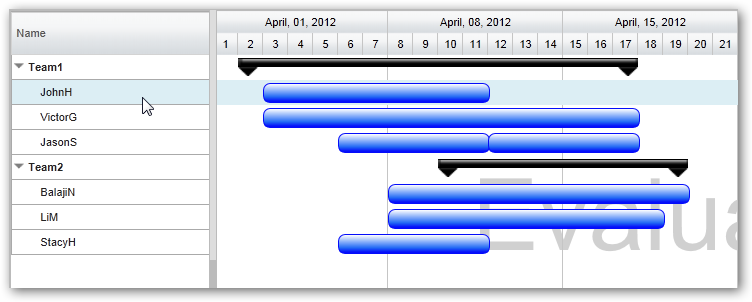
Sample In Browser
Finally, take a look at this topic that show how you can clean up the Src folder in your project to remove unnecessary files.
© RadiantQ 2022. All Rights Reserved.